If the expense is in a Recorded status:
Expense entries in a Recorded Status can now be edited, but must first be recalled. When an entry is recalled, the status will change to Juris Suite Draft.
-
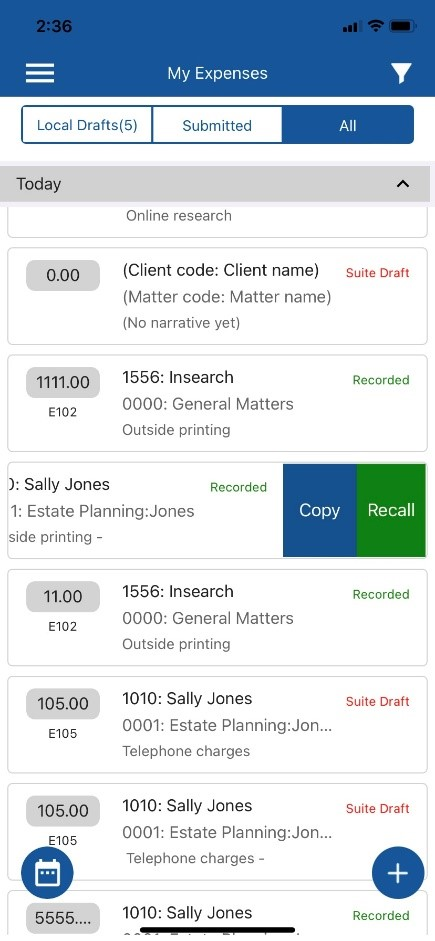
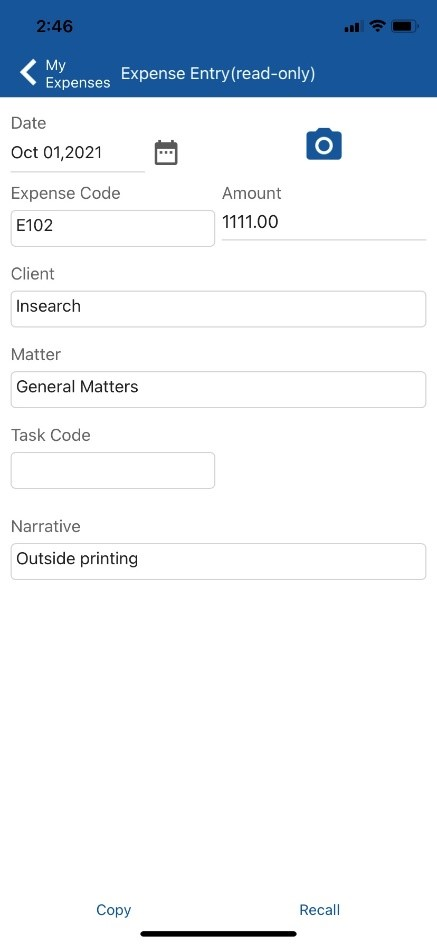
Recall the draft entry by swiping left on the entry to reveal the Recall button. Entries can also be recalled by opening the entry and tapping the Recall button located on the bottom toolbar.
-
This will remove the entry from Juris Suite and place it on the device as a Local Draft.
-
Once the entry is edited, it can be resubmitted to Juris Suite, or saved on the device as a Local Draft.
-
If the entry has an attachment and is edited or recalled, you will not be able to view the attachment.
-
If the expense entry is a Juris Suite Draft:
Examples of a Juris Suite Draft status include Draft, Ready To Submit, Pending Approval, Rejected, Memorandum or Recorded.
-
Swipe left on the entry to reveal the Edit button, or open the entry and tap the Edit button located on the bottom toolbar. This will remove the entry from Juris Suite and place it on the device as a Local Draft.
-
After the entry is edited, resubmit to Juris Suite or save it on your device as a Local Draft.